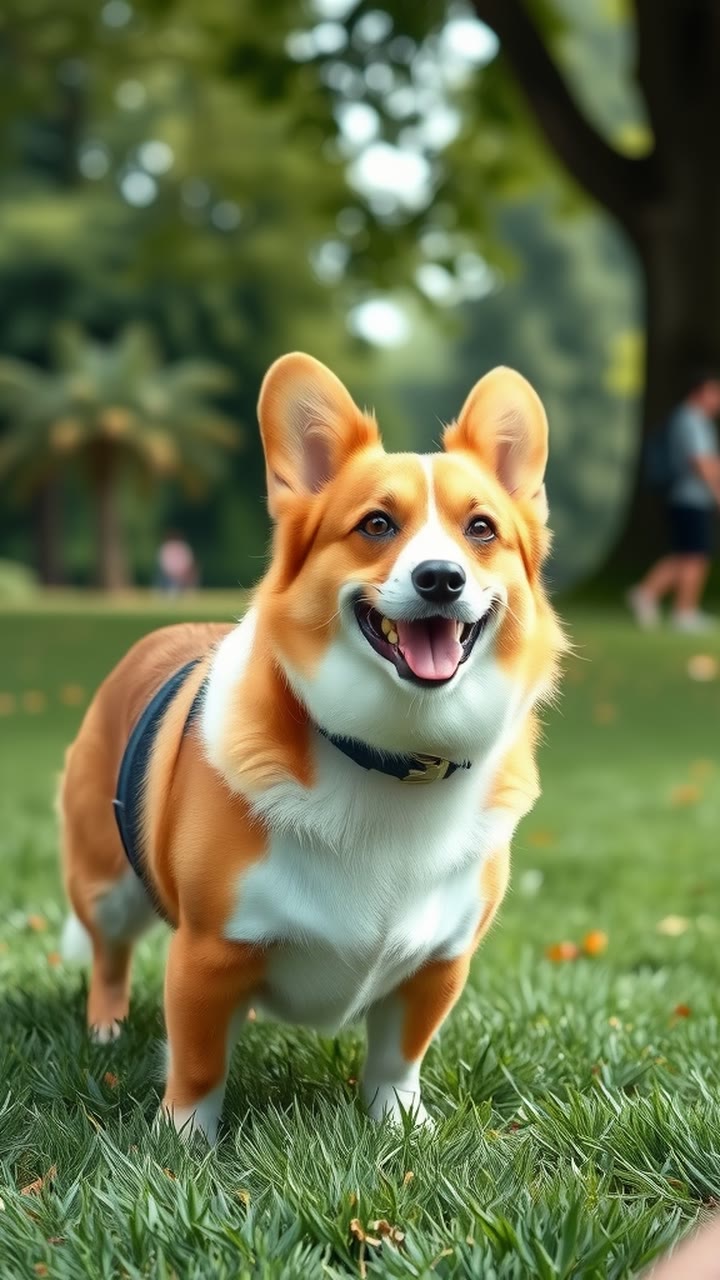
How to Turn Your Pet Into a Cartoon Video From One Photo
Seeing your own pet as an animated character is a small delight, and it no longer takes an artist. Cartoon Pet on MagicTakes redraws your dog or cat as an animated character with its own colours and markings, then brings it to life in a 5-second vertical clip. This guide covers the photo, the three styles and how to fix a take that misses.
What the cartoon pet video looks like
The take opens on your pet redrawn as an animated character: big expressive eyes, soft fur and the same colours and markings as the real thing, on a bright, friendly background.
From about one to three seconds it blinks, smiles and wiggles its ears. In the last two seconds it does a small happy hop. The motion is bouncy and lively, the way animated characters move, rather than realistic.
Two things make it look like your pet rather than a generic cartoon dog or cat: the markings and the colours. Those are what the template keeps, so they are what your photo needs to show clearly.
Unlike the realistic templates, this one changes everything about the picture except your pet's identity. The background, the light and the fur texture are redrawn, so the original photo only needs to show your pet well, not look good overall.
How to make it on MagicTakes
- Open the Cartoon Pet template.
- Upload one photo of your pet with its colours and markings clearly visible.
- Choose a style: Movie studio, Clay or Anime.
- Tap Make my take. It costs 40 credits, and your first take is free with a small magictakes.com mark.
- Wait two to four minutes. You can leave the page; the take is saved in your library when it is ready.
- Download the 5-second 9:16 MP4, or make another take in a different style.
Which photo works best
A photo that shows your pet's patches, stripes and face shape clearly gives a character that is unmistakably yours.
A pet with a solid coat can still look like itself: in that case the shape of the face, the ears and the eye colour do the work, so pick a photo where those are clear and the pet is looking straight at you.
- One pet, facing the camera, taking up most of the photo
- Markings in clear view: a white chest, a patch over one eye, striped legs
- Bright, even light, without filters that shift the colours
- A sharp photo; blur makes markings disappear
- The background doesn't matter, since it is replaced
Choosing a style
Movie studio is polished 3D feature-film animation: smooth fur, big eyes and soft light. It is the most familiar look and the safest first pick.
Clay turns your pet into a handmade stop-motion figure, complete with visible thumbprints. It has a warm, crafted feel and is a good choice for a card or a gift.
Anime is soft hand-drawn animation with gentle colours. It is flatter and calmer than the other two, and works well for pets with simple, bold markings.
One style per take. Make a take in each style from the same photo to see which suits your pet; all of them are kept in your library.
If the take is for children, Movie studio and Clay tend to be the crowd-pleasers. If it is for your own profile picture, Anime gives a calmer image that still reads well when it is small.
Ideas for using it
A cartoon version is also a nice way to share your pet without sharing your home: the redrawn background means no rooms, windows or street views from the original photo end up in the clip.
- An animated avatar for your pet's account
- A birthday card with a twist, sent as a video
- A cartoon version for kids in the family who love the pet
- A before-and-after post: the real photo, then the cartoon take
- Post on TikTok, Instagram Reels or YouTube Shorts; the take is silent, so add your own sound
When a take doesn't look right
Each take is a new attempt from the same photo, and every one is kept in your library. If the first version is close, a second take in the same style often gets the eyes or ears just right.
- The markings are wrong or missing: use a brighter, sharper photo where they are easy to see, then make another take.
- It looks like a different breed: choose a photo that shows the face straight on, so the shape of the ears and muzzle is clear.
- The hop or ear wiggle looks odd: make another take from the same photo. Each take is a new attempt.
- A take failed to generate: its credits go back to your balance automatically.
Questions
Can I use the same photo for all three styles?
Yes. Upload it once and make a take in each style. Each take is saved in your library so you can compare them.
Does it work with a photo of two pets?
It is made for one pet. Crop the photo so one pet fills most of the frame, and make a separate take for the other.
How much does it cost after the free take?
40 credits a take. Credits come in one-time packs from $9.99 for 100 credits and never expire. If a take fails, the credits come back automatically.
What happens to my photo?
Uploads are deleted after 30 days. Your takes stay private unless you share them.