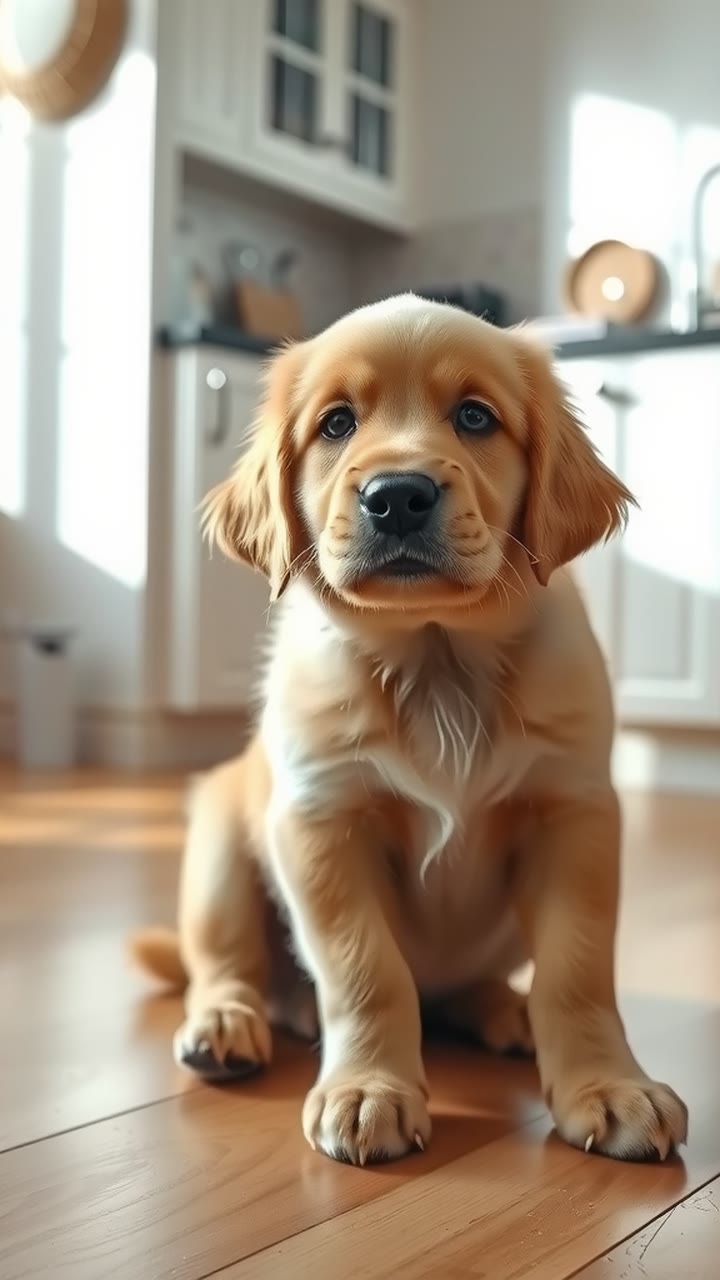
How to Make Your Pet's Photo Move: A Short Video From One Picture
A good pet photo catches one moment. Pet Comes Alive on MagicTakes turns that moment into a 5-second video: your dog or cat blinks, tilts its head, glances around and wags its tail, in the same spot you photographed it. Here is how to make it and how to get a result that looks like your pet.
What the effect does
This is the simplest template on MagicTakes. Nothing is added or changed: no costume, no new background. The video starts on your photo exactly as you took it, and your pet starts to move.
In the first second the frame matches your photo. From about one to three seconds your pet blinks, tilts its head and looks around curiously. In the last two seconds it gives a gentle tail wag and looks back at the camera. The camera stays still the whole time, so it feels like the photo woke up rather than like a new video.
Because the photo is used as it is, the result depends heavily on the photo. A sharp, well-lit picture of one pet gives natural motion. A blurry or busy picture gives the model more to guess.
At 30 credits it is also one of the lower-cost templates, which makes it a good first take if you have never made one: you will see quickly how much the photo you choose shapes the result.
How to make it on MagicTakes
- Open the Pet Comes Alive template.
- Upload one photo of one pet, facing the camera.
- Choose a style: Natural or Playful.
- Tap Make my take. It costs 30 credits, and your first take is free with a small magictakes.com mark.
- Wait two to four minutes. You can leave the page; the take is saved in your library when it is ready.
- Download the 5-second 9:16 MP4 and share it.
Which photo works best
Since your photo is the first frame, choose it the way you would choose a profile picture.
If you have several photos, upload the one where your pet looks most like itself rather than the cutest one. A slightly unusual head tilt or a familiar spot on the sofa makes the moving version feel more personal to the people who know your pet.
- One pet, facing the camera, taking up most of the photo
- The whole head in view, with nothing covering the face
- Bright, sharp and without filters; soft daylight from a window works well
- The tail in the frame if you want to see the wag
- A vertical photo fits the 9:16 video best; a wide photo leaves more to fill in
Natural or Playful
There are two styles. Natural keeps the movement calm and gentle, like a quiet moment at home: a blink, a head tilt, a look around and a slow tail wag. Playful adds energy: ears up, a small bounce on the front paws and a fast, happy wag. The camera stays still in both.
If you are not sure, start with Natural, then make a second take with Playful from the same photo and keep the one that feels more like your pet. Every take is saved in your library, so you can compare them side by side.
Ideas for using it
The clip is short and quiet, which makes it easy to reuse.
Because the camera never moves and nothing is added, the clip feels like a living version of the photo rather than a new video, which suits a quiet message better than a big post.
- A moving profile picture for your pet's account
- A surprise in the family group chat, captioned "Guess who woke up"
- A favourite old photo brought back, for an anniversary or a birthday
- A gentle way to remember a pet who has passed, shared with people who knew them
- Post it on TikTok, Instagram Reels or YouTube Shorts and add your own sound
When a take doesn't look right
Each take is a fresh attempt from the same photo, so if the first one is close but not quite right, a second take often fixes small things like a stiff wag or an odd blink. Every take you make stays in your library, so you never lose a version you liked.
- Extra paws or a melting face: use a sharper photo where the whole head is clear, then make another take.
- Your pet barely moves: try a photo where it is not pressed against the edge of the frame, so there is room to turn.
- No tail wag: the tail has to be in the photo to wag. Use a photo that shows it, or accept a head-and-shoulders version.
- A take failed to generate: its credits go back to your balance automatically.
Questions
Can I use an old or scanned photo?
Yes, if it is reasonably sharp and shows one pet clearly. Crop out borders and other animals first. Very small or faded prints give less predictable motion.
Does the background change?
No. The video starts from your photo as it is, so the room or garden in the picture stays the same.
How much does it cost after the free take?
30 credits a take. Credits come in one-time packs from $9.99 for 100 credits, and they never expire.
Is there sound?
No. Takes are silent 9:16 MP4 files, so you can add your own sound when you post.